JournalAI Content Approval Workflow: How to Review Every Draft Before It Publishes

Demo

See it
work.

Six screens from the real app, in the order you meet them. No video, no mock-ups: this is the product, running a sample brand.

Sample brand, sample content
Step 01 of 06

Set up the brand from your website

Give it your website and one sentence about the business. It reads the site and drafts the brand's voice, look and market for you to check. That takes about a minute.

What you doEnter your website, pick the kind of account, then review what it found.
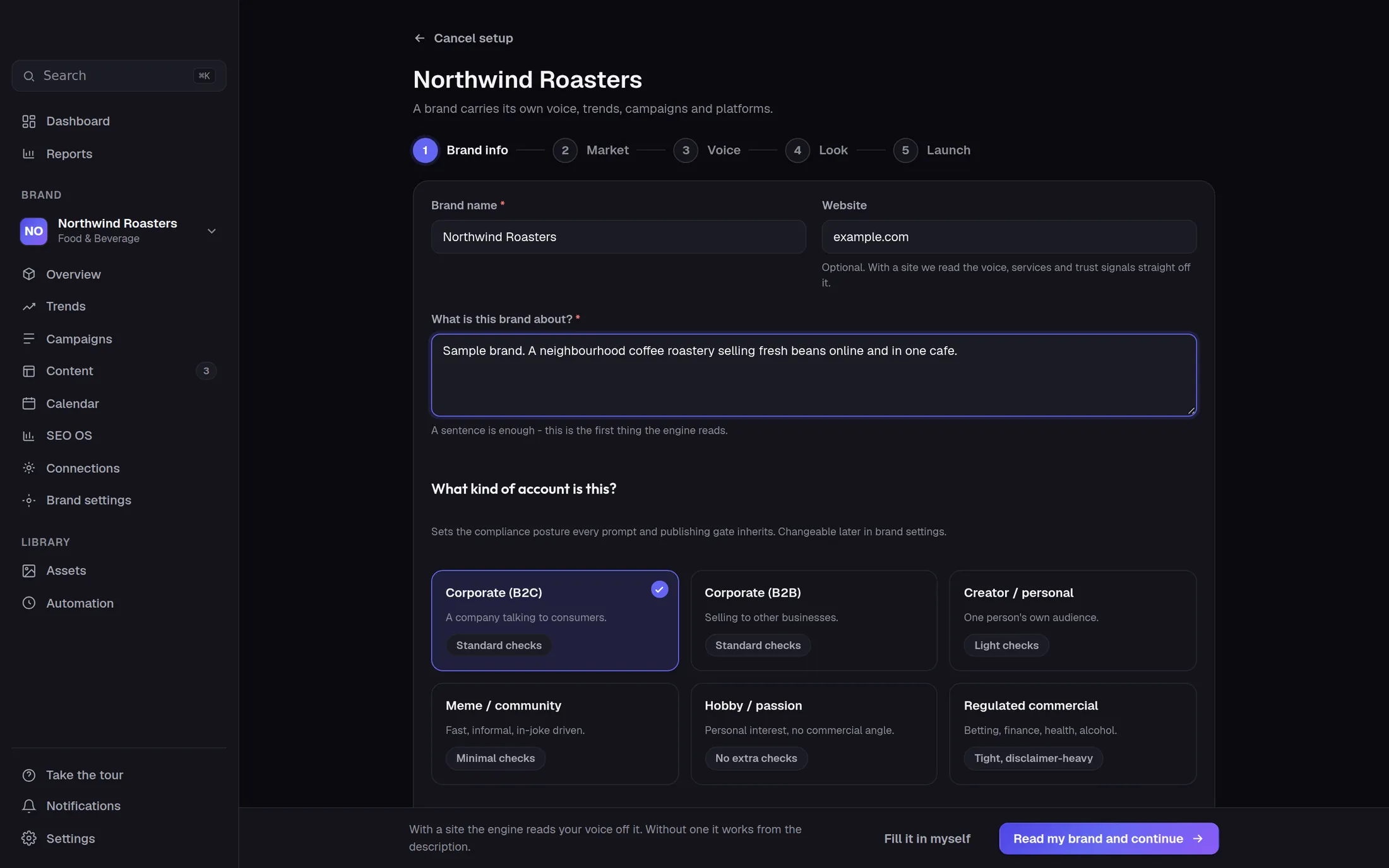
The brand setup screen: name, website and a short description of a sample coffee roastery
Real screen from the app. Sample brand, sample content.
Step 02 of 06

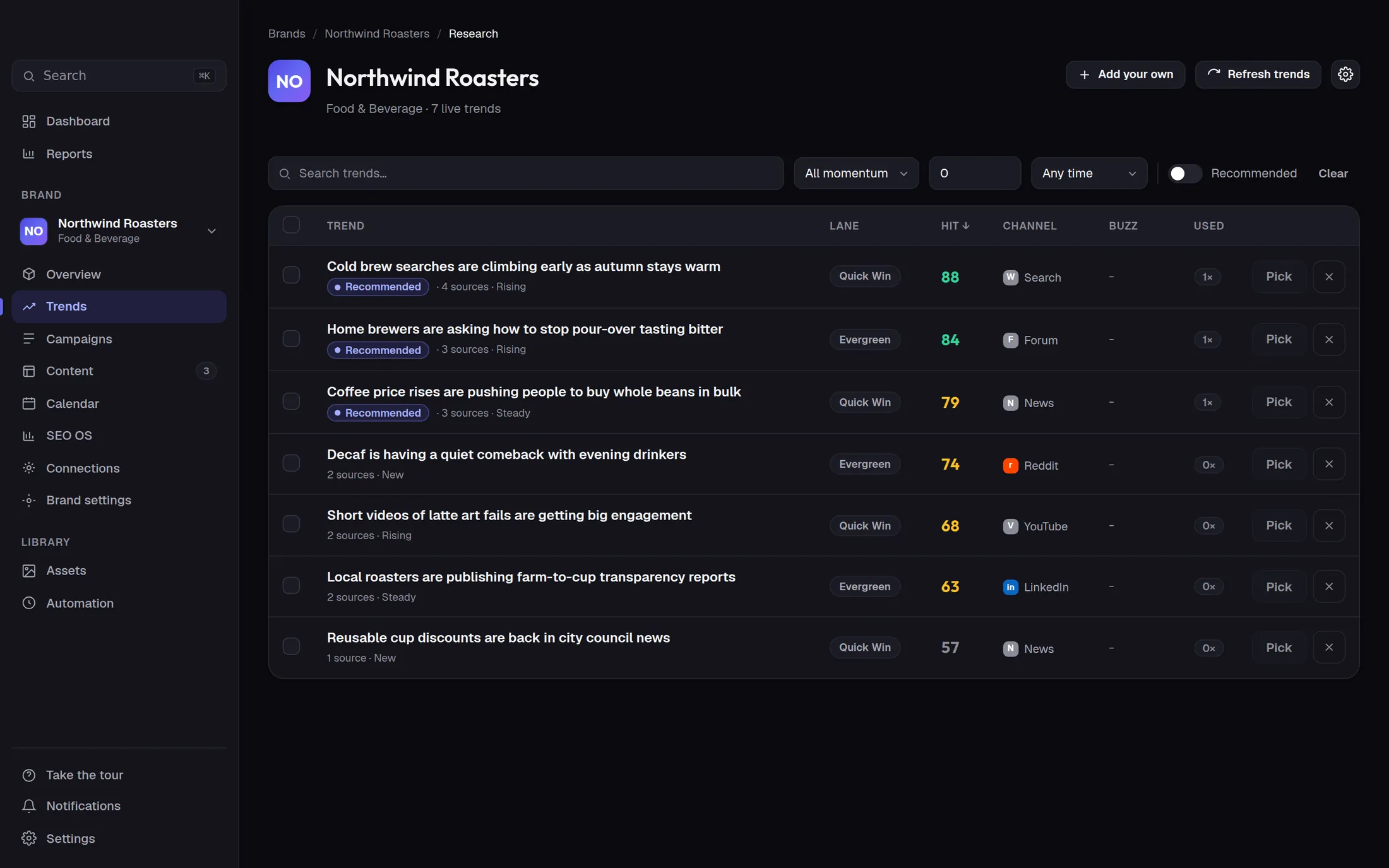
Trends, each with its sources

Research reads live web search, forums, news and competitors. Each trend gets a score and keeps the links it came from, so you can check it before anything is written.

What you doPick the trends worth writing about, or let autopilot file them into your campaign.

The trends table: scored trends with their channel and how many sources back each one
Real screen from the app. Sample brand, sample content.
Step 03 of 06

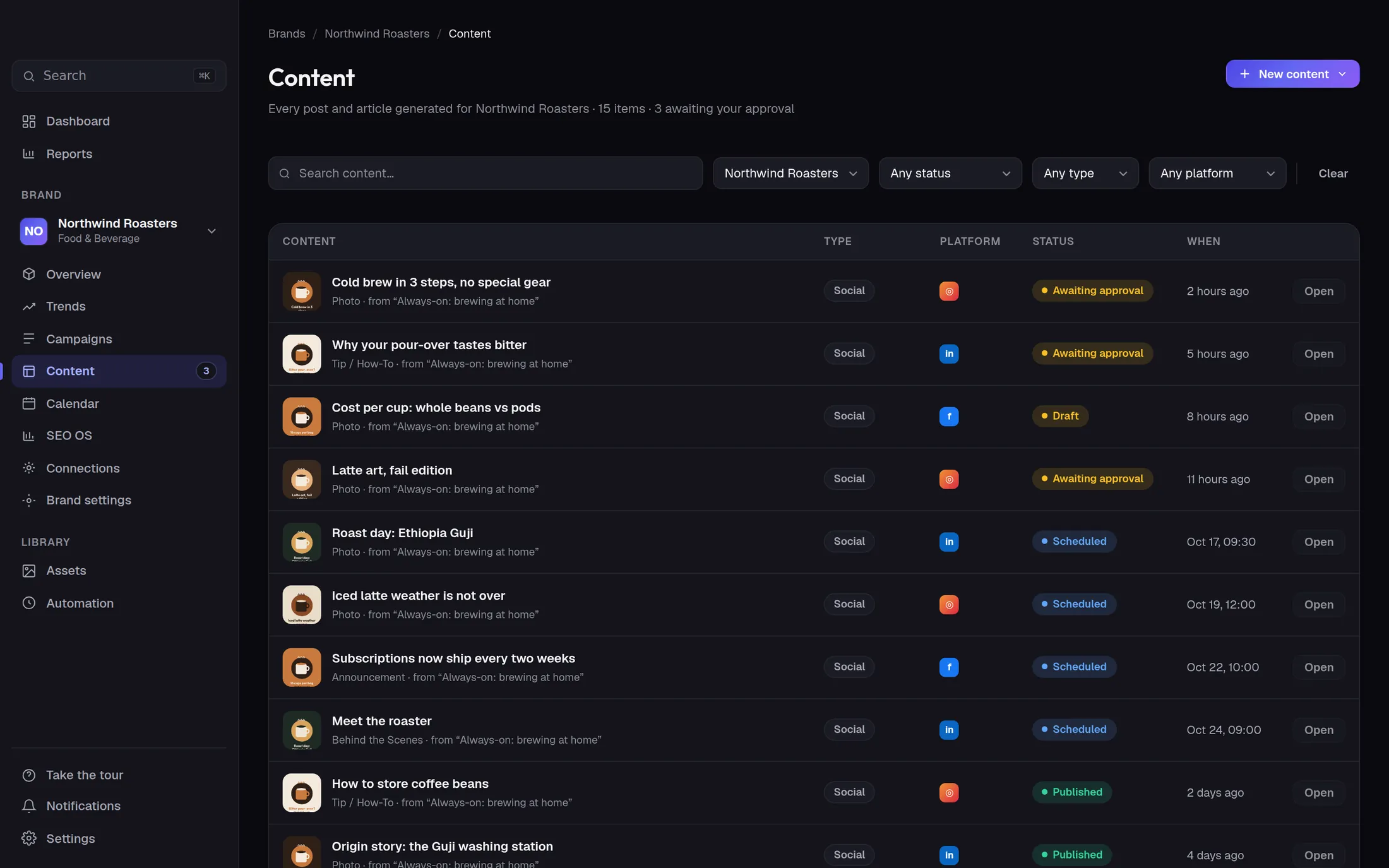
Drafts wait in the approval queue

Start autopilot and the first drafts land here within minutes: a post for each platform, with an image in the brand's colours. Nothing is published until you approve it.

What you doOpen a draft, then approve it or reject it.

The content list: drafts awaiting approval, scheduled posts and published posts for the sample brand
Real screen from the app. Sample brand, sample content.
Step 04 of 06

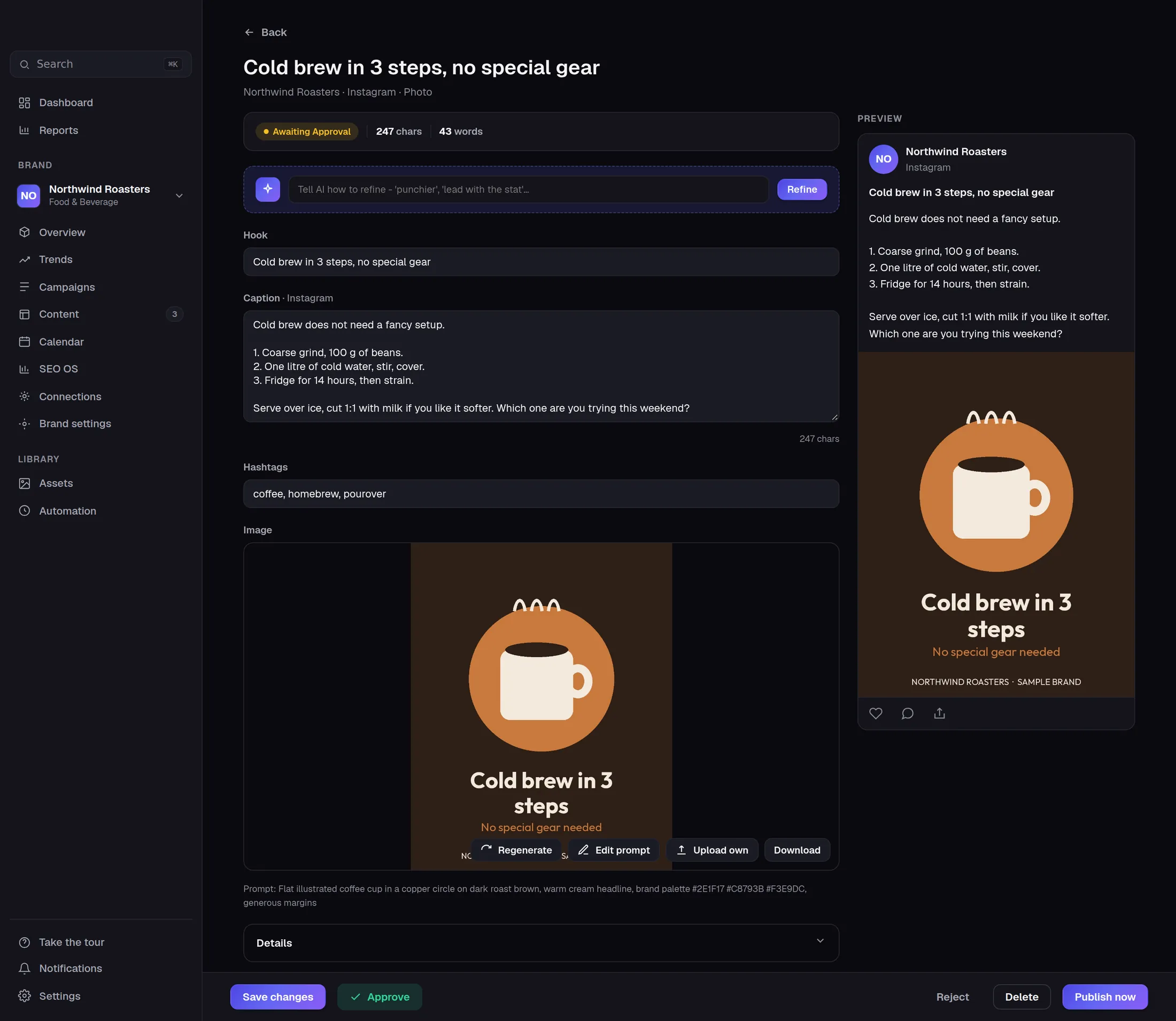
Edit it, and it learns

Change the hook or the caption, regenerate the image, or rewrite the image prompt. Prompt changes you approve are kept as the brand's image preferences, and what you publish teaches it your voice.

What you doMake your edits, then approve or schedule the post.

The post editor: hook, caption, the image with Regenerate and Edit prompt, and the Approve button
Real screen from the app. Sample brand, sample content.
Step 05 of 06

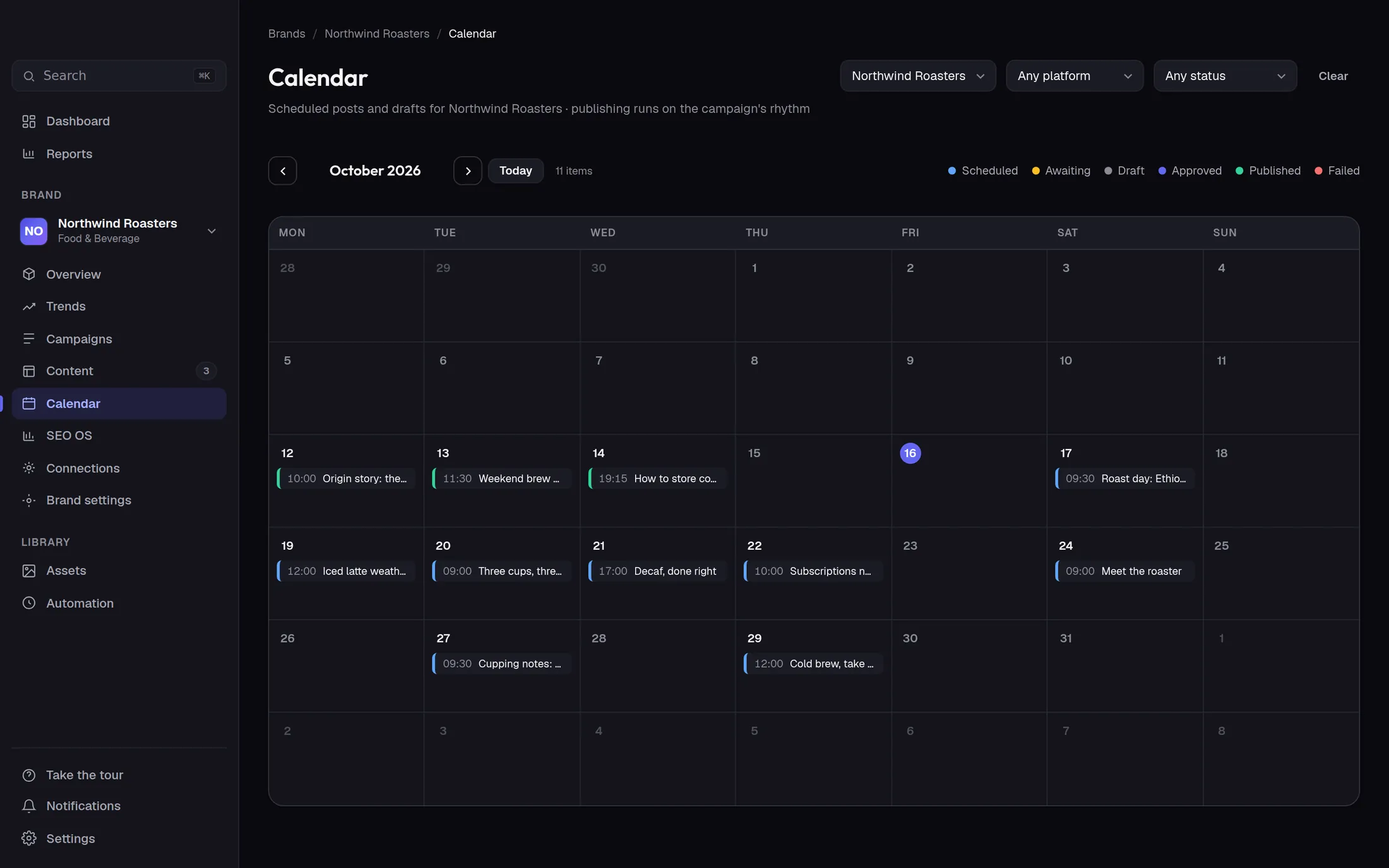
The calendar shows what goes out

Approved posts get a time and are published to the platforms you connected. The calendar shows what is planned and what already went out.

What you doConnect your platforms, check the week, reschedule anything that should move.

The calendar for October with scheduled and published posts for the sample brand
Real screen from the app. Sample brand, sample content.
Step 06 of 06

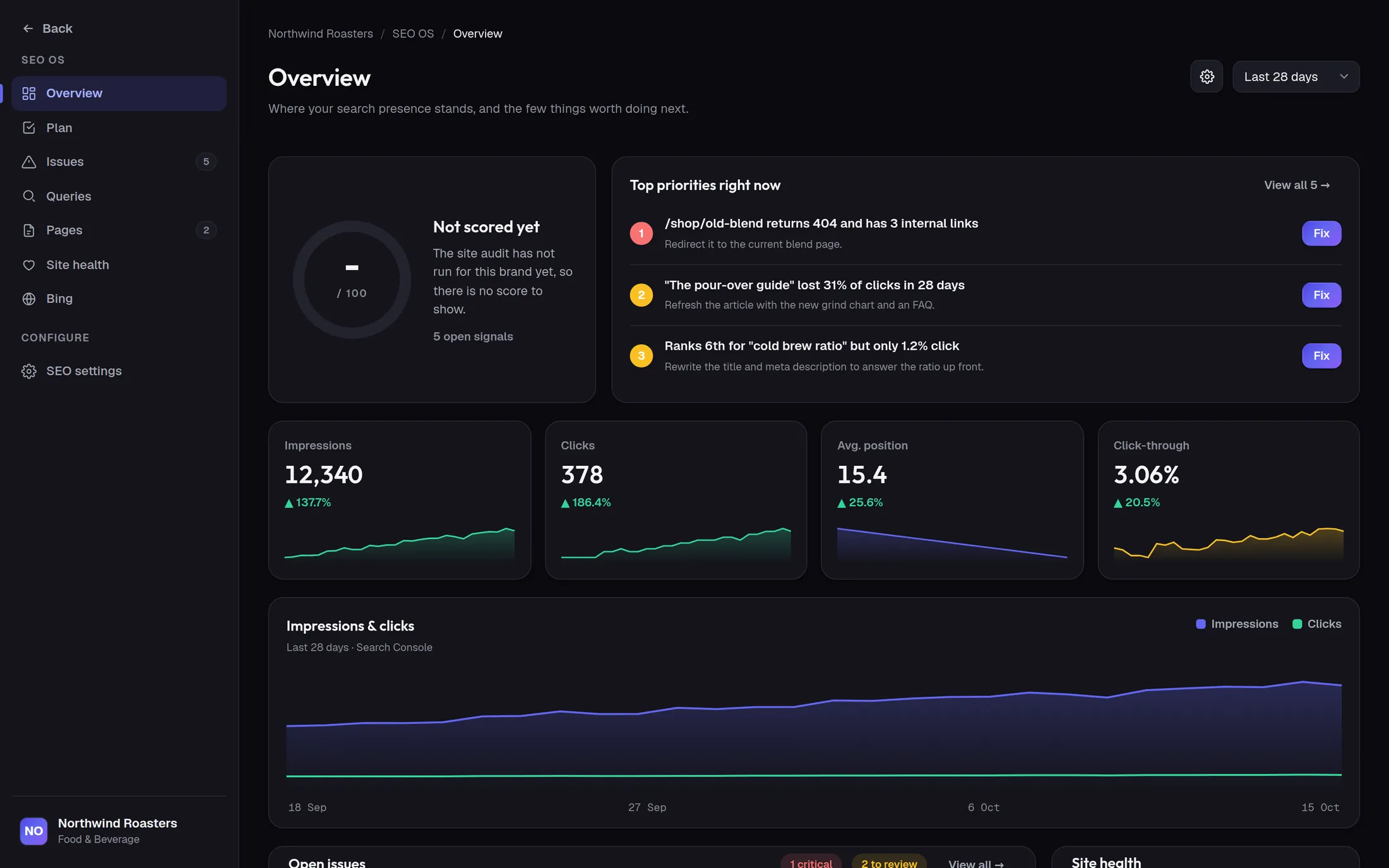
SEO OS reads your search data

Connect Search Console and SEO OS shows impressions, clicks and positions, the searches you can win, and pages that start to slip, as one list of priorities. Included on Scale.

What you doConnect Search Console, then work through the top priorities.

SEO OS overview: top priorities, clicks and impressions charts for the sample brand
Real screen from the app. Sample brand, sample content.

Your brand,
the same six screens.

Set up takes a few minutes. Start autopilot and your first drafts are waiting for you in about ten.

Cleared for takeoff.

Set up a brand from your website in a few minutes. Start autopilot and your first drafts are waiting in your queue in about ten minutes. You approve every one.

Start free - 7 days

7-day free trial of Scale, no card.