

Integration · Pinterest
Schedule Pinterest pins with AI, after you approve them
ADpilot makes a vertical image for each idea, writes the pin title and description in your brand's voice, holds the pin for your approval and publishes it to the board you choose. You connect by signing in with Pinterest. Pins can link to your site, and impressions, saves and clicks are read back into your reports.
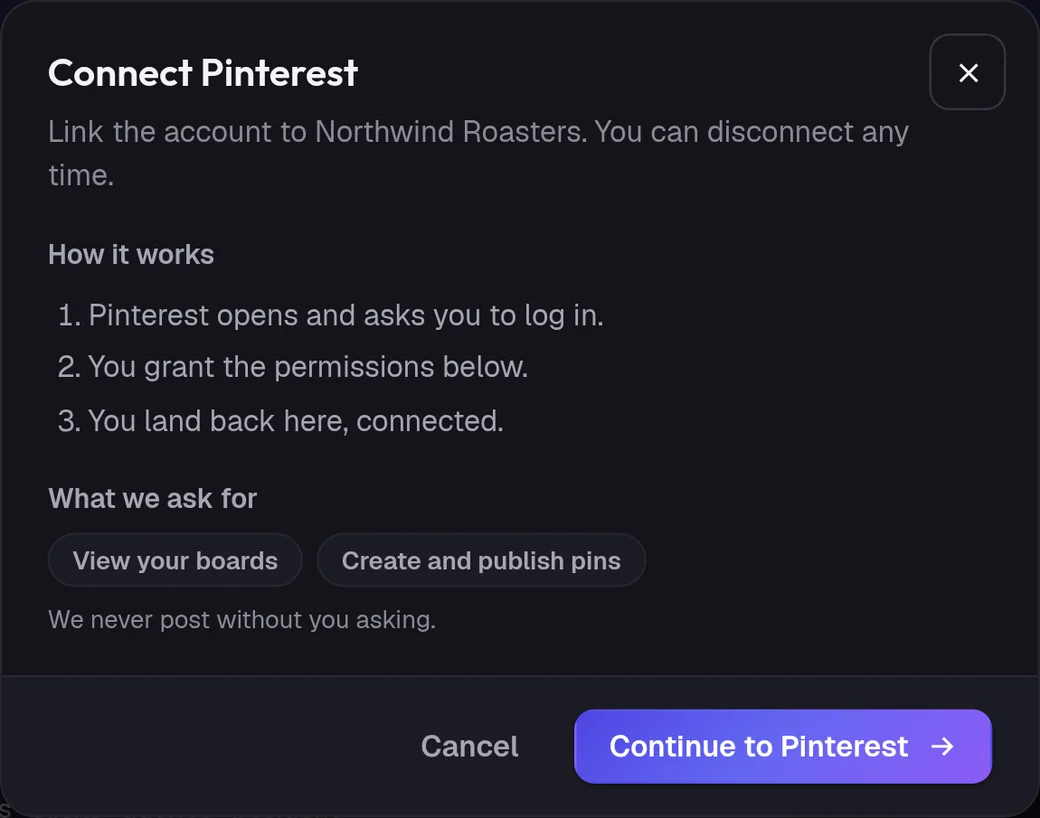
Connect
How do I connect Pinterest?
- 01
In ADpilot open Connections and choose Pinterest.
- 02
Check what ADpilot asks for: to view your boards and to create and publish pins. Then Continue to Pinterest.
- 03
Pinterest opens. Log in and allow access.
- 04
If you have more than one board, pick the one this brand pins to. With one board, it is used straight away.
Owners and admins can connect; contributors cannot. The account needs at least one board: create one on Pinterest first, or connecting stops with a message telling you to. The access token is stored encrypted.
What goes out
What ADpilot posts to Pinterest.
A vertical image in 2:3, the shape Pinterest shows best. Every pin needs one; text-only pins do not exist.
The post title becomes the pin title, and the caption with its hashtags becomes the description.
When the post has a link, the pin points to it.
Limits
What it does not do yet.
- Pinning to more than one board per connection
- Video pins and Idea pins
- Creating boards for you
Questions
Pinterest questions.
Which board do pins go to?
The one you choose when you connect. If the account has a single board, ADpilot uses it; if it has several, you pick one.
Does ADpilot report Pinterest results?
Yes. Impressions, saves, pin clicks and outbound clicks are read back every few hours and feed the weekly report.
Can a pin link to my website?
Yes. When the post carries a link, the pin is created with it, so people who click the pin land on your page.